


THE BATCH 2023-2024 YEARBOOK IS NOW AVAILABLE.

Announcements

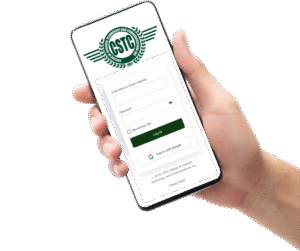
CSTC Online Services Now Available! Easily request documents, access announcements and schedules via the Student Portal menu, and complete enrollment with Online Registration. Browse our website for fast and convenient transactions!

Early Registration for AY 2025-2026 is Now Open! Secure your spot for the upcoming school year! Register early for a smooth and hassle-free enrollment process. Don’t miss this opportunity—start your journey with us today!

LMS & IT Support Office
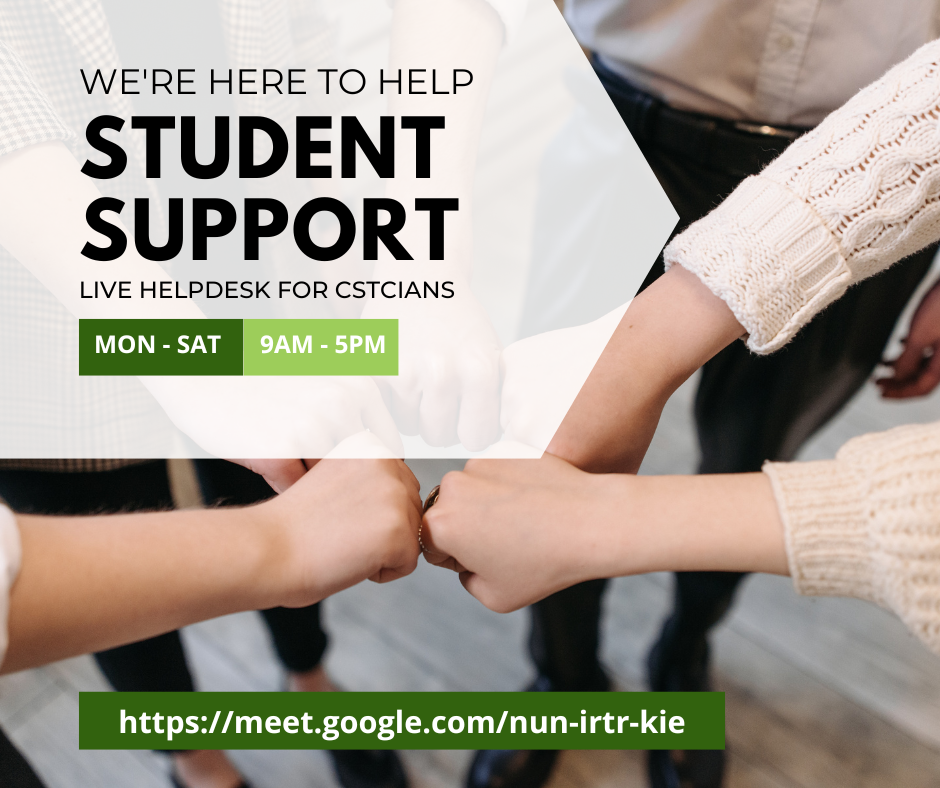
Providing technical assistance, LMS account setup, email support, and digital learning access for students and faculty.
Storage Upgrade
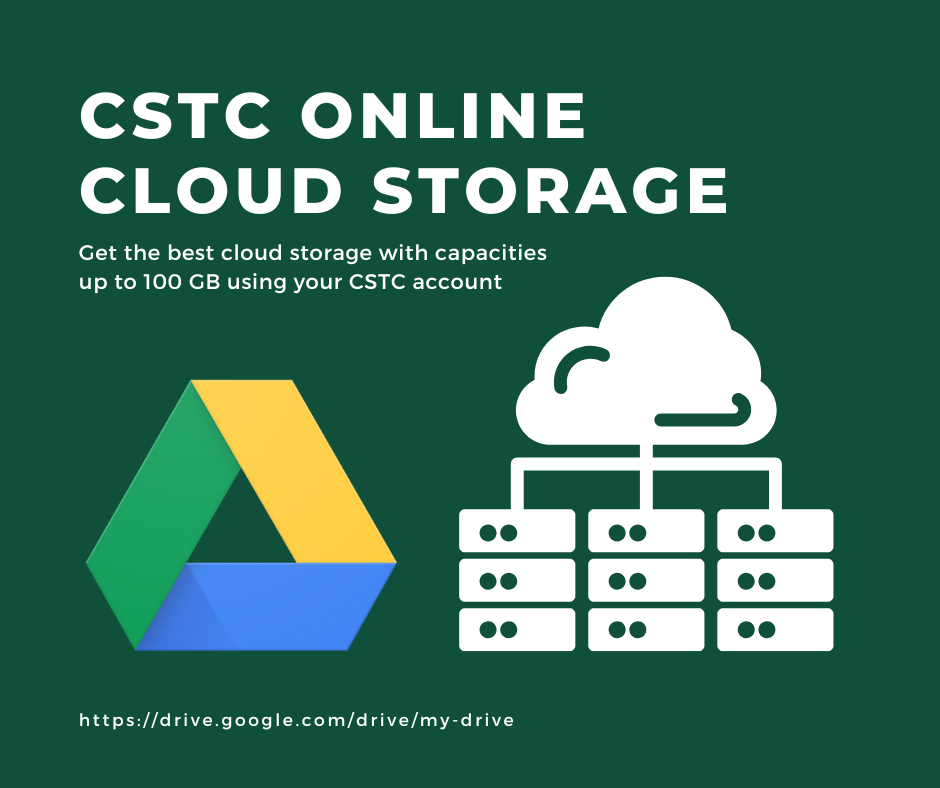
CSTC cloud storage upgraded from 20GB to 32GB! More space for your files, class materials, and more—no worries!
Can't Access Your Account?
The CSTC Student IT Support Ticketing System makes it easy for students to report IT issues, attach files, track request status, and get timely help—ensuring faster and more efficient support.
Click Here

CSTC Learning Management System

The CSTC Learning Management System (LMS), powered by Google Workspace, is a dynamic and user-friendly online platform designed to enhance teaching and learning experiences at the College of Sciences, Technology and Communications, Inc. (CSTC). By integrating essential Google tools such as Google Classroom, Drive, Meet, Docs, and Gmail, the CSTC LMS provides a seamless digital environment where students and faculty can collaborate, communicate, and access educational resources anytime, anywhere. This innovative system supports interactive learning, efficient management of academic tasks, and continuous engagement, making it a vital tool in delivering quality education in the digital age.

Ready & Resilient

At CSTC, we believe that education must adapt to the ever-changing demands of the modern world. Our LMS, built on the reliable and flexible foundation of Google Workspace, ensures that learning continues uninterrupted—whether in the classroom or online. This system equips students and faculty with the tools needed to stay connected, organized, and productive during unforeseen challenges such as natural disasters, health emergencies, or shifting learning modalities. With features that support real-time collaboration, instant communication, and cloud-based access to coursework, CSTC remains ready and resilient in delivering quality education, no matter the circumstances.

Accessing Google Workspace Tools

1.1 Accessing Your Google Workspace Account

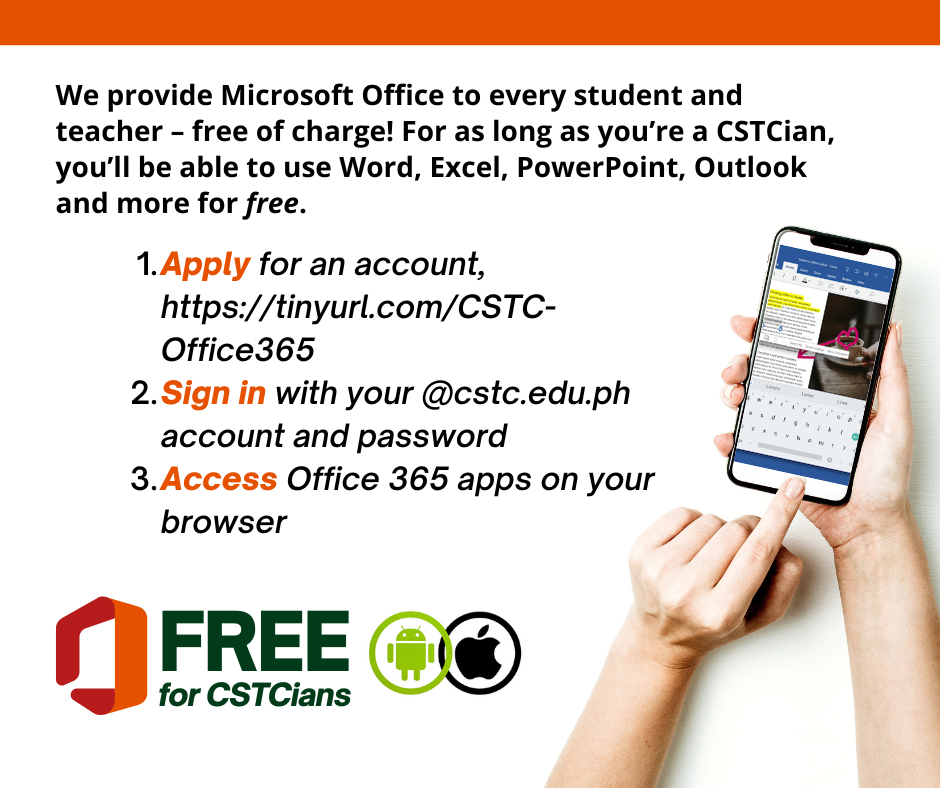
  1. Account Information: Your Google Workspace account will use your CSTC email address, typically formatted as [username]@cstc.edu.ph.
  2. Login Steps:
    • Go to Google’s sign-in page.
    • Enter your CSTC email address and click “Next.”
    • Enter your password and click “Next” again.
    • If it’s your first time logging in, you will be prompted to change your password.

1.2 Setting Up Two-Factor Authentication (2FA)
To enhance security, enable 2FA:`

    1. Go to your Google Account settings.
    2. Click on “Security” and select “2-Step Verification.”
    3. Follow the prompts to set up 2FA using your mobile device.

2.1 Gmail

  • Purpose: Email communication with instructors, classmates, and CSTC staff.
  • Key Features:
    • Organize emails using labels and filters.
    • Use the “Tasks” feature to keep track of assignments and deadlines.
    • Enable “Confidential Mode” for sensitive communications.

2.2 Google Drive

  • Purpose: Cloud storage and file sharing.
  • Key Features:
    • Store and organize documents, presentations, spreadsheets, and more.
    • Share files with classmates and instructors with customizable permissions.
    • Use “Shared Drives” for group projects.

2.3 Google Docs, Sheets, and Slides

  • Purpose: Create and collaborate on documents, spreadsheets, and presentations.
  • Key Features:
    • Real-time collaboration with comments and suggestions.
    • Use templates for a quick start on common document types.
    • Export files in various formats, including PDF and Word.

2.4 Google Classroom

  • Purpose: Streamline class communication and assignment management.
  • Key Features:
    • View class announcements and materials.
    • Submit assignments and view grades.
    • Communicate with your teacher and classmates.

2.5 Google Calendar

  • Purpose: Schedule and organize events.
  • Key Features:
    • Set reminders for classes, assignments, and exams.
    • Share your calendar with classmates and instructors.
    • Sync with other devices to stay up-to-date.

3.1 Google Meet

  • Purpose: Video conferencing for classes and group work.
  • Key Features:
    • Join or create video meetings.
    • Use screen sharing for presentations.
    • Record meetings for later review (if permitted).

3.2 Google Chat

  • Purpose: Instant messaging and group chat.
  • Key Features:
    • Create group chats for project collaboration.
    • Use the @mention feature to get someone’s attention.
    • Share files and links directly in chat.

4.1 Account Settings

  • Update Personal Information: Access your account settings to update your name, profile picture, and other personal information.
  • Password Management: Regularly change your password for security.

4.2 Privacy and Security

  • Privacy Settings: Review and adjust your privacy settings in your Google Account.
  • Data Management: Understand how to download or delete your data if needed.

Need Help?

For account-related concerns, reach out to CSTC IT Support through the LMS Department. We're here to assist you!